
Toy Story: Retro Roundup Steam Deck: Settings Guide
Toy Story: Retro Roundup Steam Deck guide covering Verified status, default settings, controller limitations, cloud saves, and tips for retro Pixar games.
Jump to
Does Toy Story: Retro Roundup Work on Steam Deck?
Toy Story: Retro Roundup Steam Deck compatibility is Verified, giving Woody and Buzz’s retro adventures a straightforward route onto your handheld. That matters because readable menus, working controls, and a performant default configuration make revisiting these games easier. This Toy Story: Retro Roundup Steam Deck guide covers the settings to start with, the controller limitation to understand, and the collection’s tools for tackling its older platforming challenges.
Released on October 15, 2026, Disney/Pixar Toy Story: Retro Roundup! brings together console and handheld versions of classic Pixar games. Digital Eclipse developed the collection, with Atari and Digital Eclipse handling publishing.
The Steam Deck rating addresses several practical questions before you start:
| Compatibility check | Result |
|---|---|
| Steam Deck status | Verified |
| Default controller configuration | Fully functional |
| Controller button prompts | Match the Steam Deck |
| Interface text | Legible |
| Default configuration | Performant |
| External controller limitation | External controllers are not supported for the primary player |
| Broader SteamOS/Linux status | Playable |
The distinction between Steam Deck Verified and SteamOS/Linux Playable matters here. The Deck-specific review covers the handheld’s controls, text, and default performance. The broader SteamOS/Linux rating is a separate result, with functional startup and the same external-controller limitation.
For handheld play, the practical takeaway is simple: start with the built-in controls and default configuration. The game’s full controller support and matching button prompts give you a useful starting point without requiring a custom layout immediately.
Keep the external-controller restriction in mind if your main plan involves a dock and a separate gamepad. Handheld compatibility and external-controller support are separate considerations, even when a game carries the Verified badge.
Toy Story: Retro Roundup Steam Deck Settings
Start your Toy Story: Retro Roundup Steam Deck setup with the defaults. The default configuration meets the Deck performance check, so use it before making changes to display filters or controls.
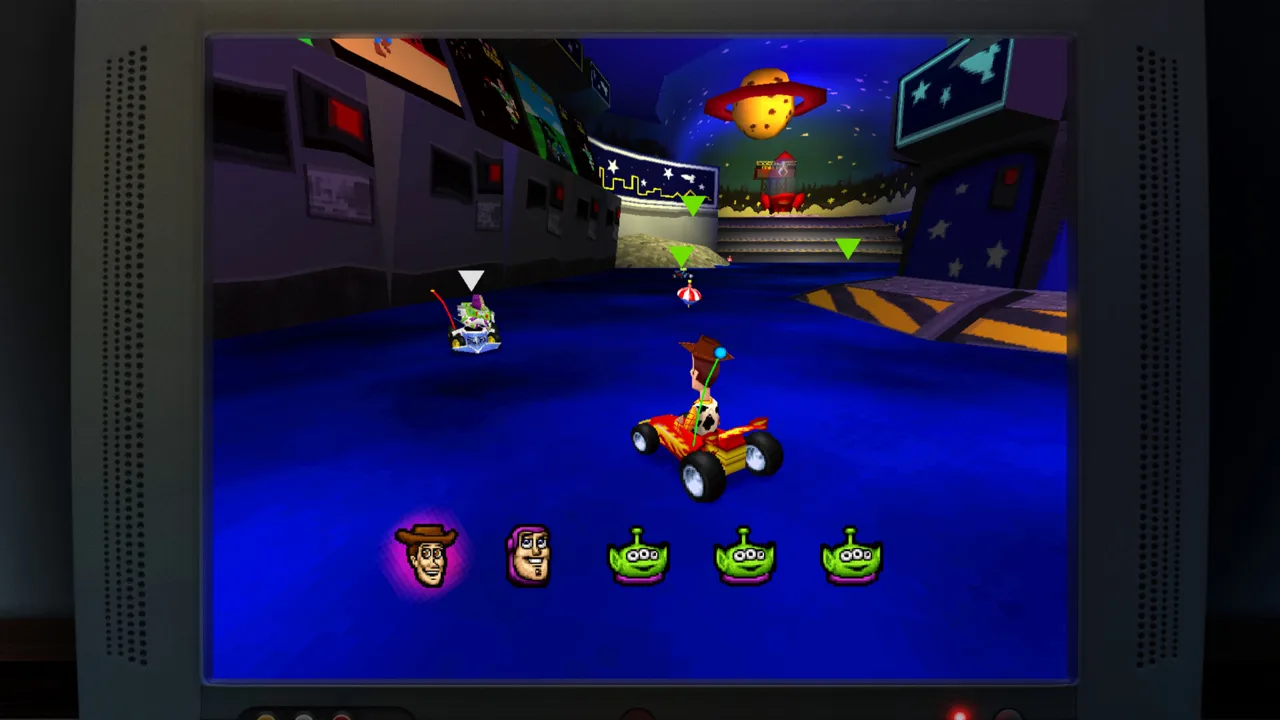 Image: Steam / Digital Eclipse
The collection includes display options, borders, screen filters, and customizable controls. Those options let you adjust presentation and layout around the original games rather than treating every included version identically.
| Setting | Value |
|---|---|
| Performance configuration | Default |
| Controller configuration | Default |
| Primary input device | Steam Deck built-in controls |
| Screen filter | Start with the normal display |
| CRT filter | Compare against the normal display for each game |
| Custom control layout | Adjust to your preferred button arrangement |
Use the normal display as a baseline, then compare it with the CRT filter. The collection spans games originally made for different kinds of hardware, so spend a moment looking at each version before settling on one presentation.
Check character outlines, platforms, and small interface elements when comparing filters. Choose the presentation that makes those details easiest for you to read. A filter that suits one game’s artwork does not need to become your setting for the entire collection.
Leave the default performance configuration in place while making those visual comparisons. Changing several things together makes it harder to decide which adjustment actually improved your experience.
Keep performance and game feel separate
Toy Story: Retro Roundup Steam Deck compatibility covers a performant default setup, but responsiveness also affects how comfortable an older platformer feels. Pay attention to jumps, direction changes, and camera movement while getting familiar with each game.
Use Practice Mode to learn a difficult section before trying to clear it normally. Rewind also gives you a way to repeat a missed jump without working back through everything that came before it.
Keep those tools separate in your mind: display settings change presentation, custom controls change your button arrangement, and Practice Mode or Rewind helps you work through gameplay. Choose the adjustment that addresses the problem you are actually having.
Controls, Rewind, and Rex’s Cheat Codes
The built-in controls are the foundation of the Toy Story: Retro Roundup Steam Deck experience. The default layout is fully functional, and the on-screen controller prompts match the device.
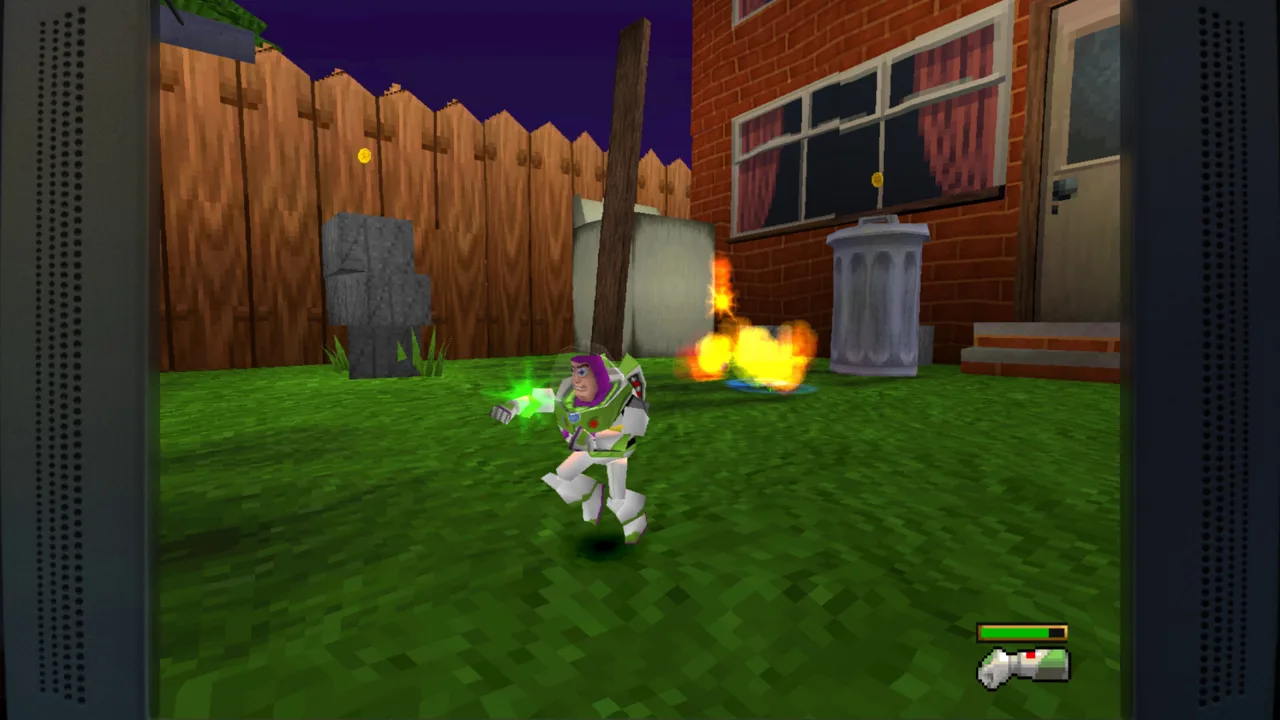 Image: Steam / Digital Eclipse
Start by reading the enhanced How to Play instructions for the game you select. This collection moves between platforming, racing, and different hardware versions, so check the controls when switching games instead of carrying assumptions from one title into another.
Custom controls let you choose your preferred arrangement. Adjust a layout when a particular action feels awkward to reach, then spend time with it before changing it again.
Use Rewind to repeat the difficult part
Rewind lets you move backward through gameplay after a mistake. Miss a jump across Andy’s shelves or take too much damage, and you can return to an earlier moment for another attempt.
Use it to isolate the action that caused trouble:
- Rewind to before the jump rather than repeating the same takeoff.
- Change your timing on the next attempt.
- Practice the section until the movement feels familiar.
- Continue normally once you can clear it comfortably.
That gives Rewind a useful role beyond simply undoing damage. It lets you focus on learning a troublesome moment while keeping the surrounding level fresh in your mind.
Choose cheats around the obstacle
Rex’s Cheat Codes include game-specific enhancements such as unlimited lives, invincibility, and access to characters or levels. Check the options inside the game you are playing, then choose the assistance that matches your goal.
Use unlimited lives when repeated attempts are the main obstacle. Choose invincibility when you want to explore without damage interrupting you. Use character or level unlocks when your goal is to revisit a particular part of a game.
For Toy Story 2’s camera, check Rex’s Cheat Codes for the option to switch its inverted behavior. Camera preference is worth addressing before spending a long session fighting against familiar muscle memory.
These tools also make it easier to share the collection with someone who knows the movies but has little experience with older games. Let them learn movement through the enhanced instructions and Practice Mode, then choose extra assistance as needed.
What You Can Play and Explore
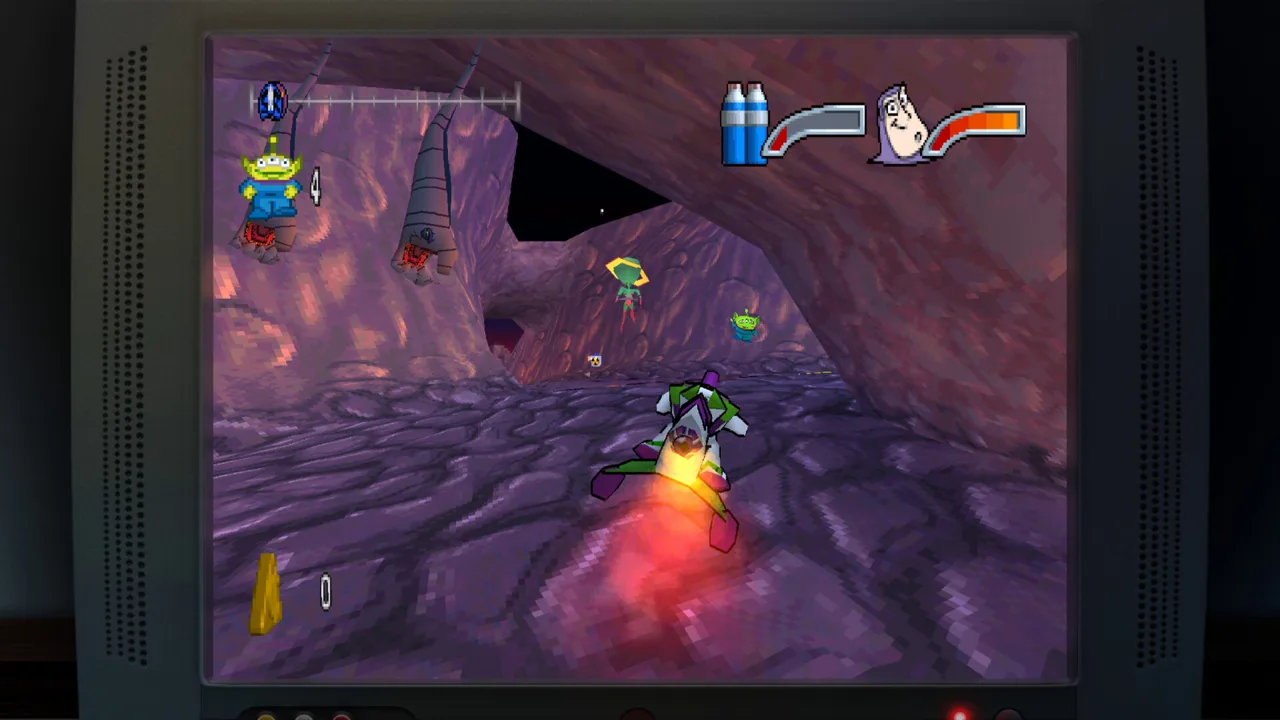
Toy Story: Retro Roundup Steam Deck play extends beyond a single version of each adventure. The collection contains 11 versions across console and handheld releases, bringing together games released between 1995 and 2001.
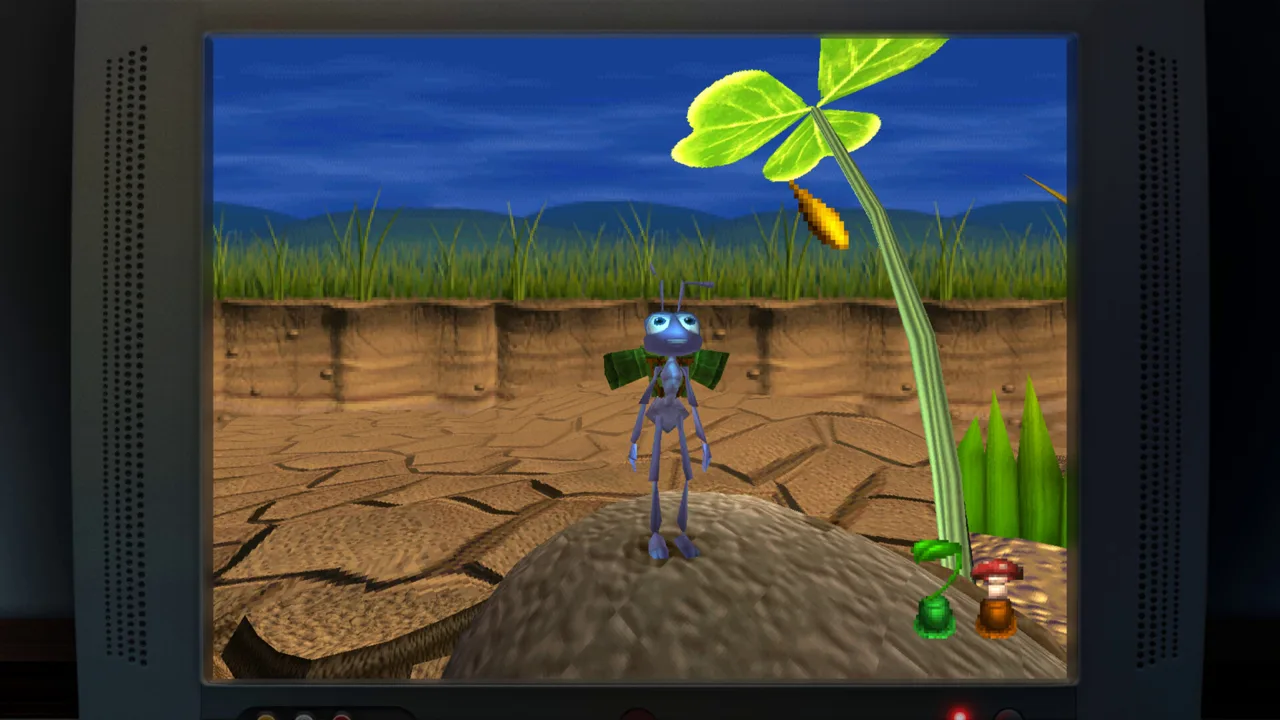 Image: Steam / Digital Eclipse
Its lineup includes Toy Story, Toy Story 2: Buzz Lightyear to the Rescue!, the handheld Toy Story 2, Buzz Lightyear of Star Command, Toy Story Racer, and A Bug’s Life. Multiple versions give you different adaptations to explore within the same package.
That variety is a substantial part of the appeal. You can return to a familiar game, then try another hardware version to see how its presentation and design differ.
The collection’s supporting features give you several ways to approach that catalog:
| Feature | What it offers |
|---|---|
| Rewind | Return to an earlier gameplay moment after a mistake |
| Rex’s Cheat Codes | Game-specific assistance and unlock options |
| Enhanced How to Play instructions | Help learning the included games |
| Practice Mode | A place to work on difficult gameplay |
| Save states | Save progress during play |
| Virtual museum | Design documents, development photos, and archival material |
| Music Player | Soundtracks from every game in the collection |
Save states and Rewind serve different purposes. Use a save state to preserve progress, then use Rewind when you want another attempt at an immediate mistake. Practice Mode gives you another route for working on a difficult section.
Take a break inside the museum
The virtual museum includes rare design documents, development photographs, and other archival material. It gives the games context beyond their opening screens and makes the package interesting even when you are taking a break from playing.
Behind-the-scenes interviews feature Jason Katz, Jim Hanks, Luigi Priore, and Jon Burton. Their contributions cover Pixar storytelling, voice acting, Disney and Pixar games, and the development history behind these adventures.
The Music Player includes the soundtracks from every game in the collection. Browse it when you want to revisit a particular game’s music without playing through its levels.
On a handheld, that mix gives you several ways to spend a session: work through a level, compare another version, read museum material, or listen to the music.
Storage, Cloud Saves, and Buying the Right Game
Before installing Toy Story: Retro Roundup on Steam Deck, allow for its 8 GB available-space requirement. Keep that PC requirement in mind when managing your library rather than using the Nintendo version’s file size.
The Steam release also includes achievements, Steam Cloud, Family Sharing, and Remote Play Together. Its multiplayer categories include shared or split-screen play, while the Deck compatibility result retains the external-controller limitation for the primary player.
| Steam release detail | Information |
|---|---|
| Release date | October 15, 2026 |
| Available-space requirement | 8 GB |
| Native PC platform | Windows |
| Controller support | Full controller support |
| Cloud saving | Steam Cloud |
| Achievements | Steam Achievements |
| Sharing features | Family Sharing and Remote Play Together |
Steam Cloud support is useful if you move between a desktop and your handheld. Save states handle progress during play; Steam Cloud provides the collection’s device-to-device save feature.
For Toy Story: Retro Roundup Steam Deck buyers, the purchase distinction to watch is Retro Roundup versus Toy Story 3: Complete Edition. Toy Story 3: Complete Edition is a separate release, and the two are also offered together in a double pack.
Choose Retro Roundup for the earlier console and handheld games, their quality-of-life features, and the museum content. Check which package you are buying if you also want Toy Story 3.
Open the Toy Story: Retro Roundup! Steam page to buy the PC collection. For handheld play, begin with the default setup, learn each game’s controls, and make use of Rewind or Practice Mode when an older challenge starts getting in the way.
FAQ
Is Toy Story: Retro Roundup Steam Deck Verified?
Yes. Toy Story: Retro Roundup Steam Deck compatibility is Verified, with functional default controls, matching button prompts, readable interface text, and a performant default configuration.
What settings should I use on Steam Deck?
Start with the default configuration and built-in controls. Compare the normal display with the CRT filter, and customize the button layout to suit your preferences.
Can I use an external controller as the primary player?
The Deck compatibility result identifies external controllers as unsupported for the primary player. Use the Steam Deck’s built-in controls for handheld play.
Does the collection support Steam Cloud?
Yes. The Steam release supports Steam Cloud and also includes save states, Rewind, Steam Achievements, and customizable controls.
Continue with
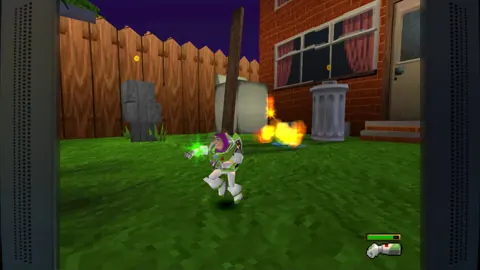 Toy Story: Retro Roundup Switch 2 Upgrade ExplainedExplore the Toy Story: Retro Roundup switch 2 upgrade, including its $29.99 price, 11 game versions, rewind options, and what to check before you buy.
More in Platforms
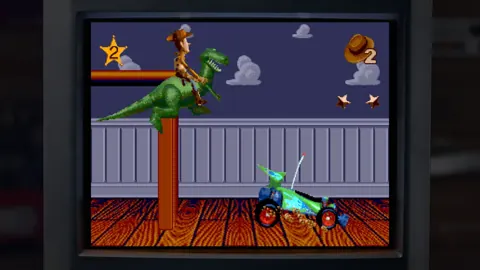
Toy Story: Retro Roundup PC: Steam Setup & Game Guide
Play Toy Story: Retro Roundup PC on Steam. Check Windows requirements, explore all 11 game versions, and learn how rewind, cheats, and local racing work.
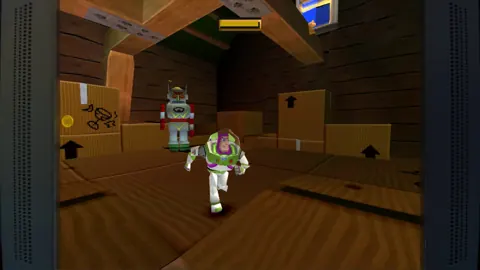
Toy Story: Retro Roundup PS4 vs PS5: Edition Guide
Toy Story: Retro Roundup PS4 vs PS5 explained: compare Double Pack contents, storage requirements, controller support, and classic games before buying.
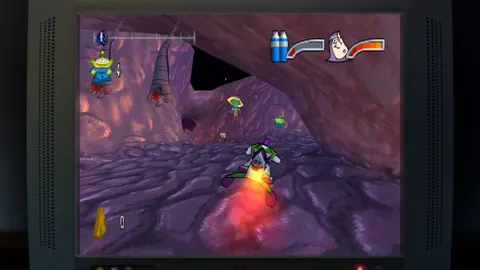
Toy Story: Retro Roundup PS4: Editions & Play Guide
Toy Story: Retro Roundup PS4 brings classic adventures back. Compare editions, explore all 11 game versions, and learn how to use rewind and Rex's cheats.
Toy Story: Retro Roundup PS5 Upgrade: Buying Guide
Explore Toy Story: Retro Roundup ps5 upgrade options, compare PS4 and PS5 physical editions, and learn what the Double Pack includes before you buy a copy.
Join the community
Official channels for news, updates and player help: