
Toy Story: Retro Roundup Bug Reports: Issues & Fixes
Toy Story: Retro Roundup bug reports cover crashes, input lag, audio glitches, and achievements. Find practical checks and workarounds before you replay.
Jump to
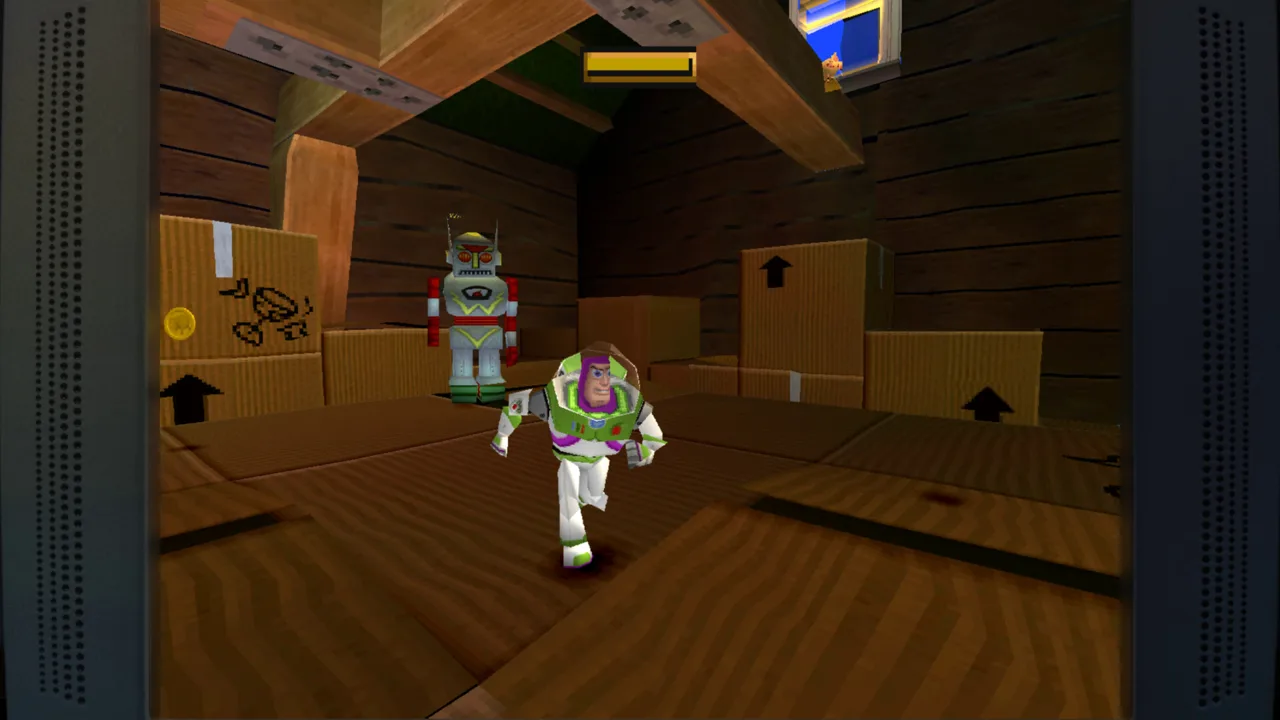
Start Here: Identify Your Game and Symptom
Toy Story: Retro Roundup bug reports cover everything from crashes before gameplay to distorted racing audio. Pinpointing your exact problem matters because a launch failure, an awkward original camera, and an achievement that refuses to unlock need different attention. Use this Toy Story: Retro Roundup bug reports walkthrough to separate those issues and find the relevant settings, workarounds, and details to record.
The collection includes 11 console and handheld versions, so “Toy Story 2 is broken” leaves out an important detail. The Game Boy Color adventure and the PlayStation version of Toy Story 2: Buzz Lightyear to the Rescue! are different games within the package.
Start by matching your experience to the appropriate category:
| Symptom | Game or part affected | What to focus on |
|---|---|---|
| Application will not start | Collection startup on Steam | Whether the collection opens at all |
| Cannot advance beyond the EULA | Screen after the title screen | Which input devices respond |
| Crash when selecting a save | Save selection on Steam | Exact game, version, and selected file |
| Left stick behaves like a directional pad | PS1 games, including A Bug’s Life | Directional movement and walking speed |
| Distorted music or sound effects | Toy Story Racer | Exact version and affected audio |
| Race achievement stays locked | Toy Story Racer on Game Boy Color | Password-menu workaround |
- Write down the complete game name and original platform. Include “PS1,” “SNES,” “Genesis,” or “Game Boy Color” wherever relevant.
- Identify the earliest point where something goes wrong. Launching the collection and selecting an in-game save are separate failure points.
- Separate the symptom from its effect. “The camera rotates opposite to my preference” is more useful than “platforming feels impossible.”
Keep that distinction throughout your Toy Story: Retro Roundup bug reports. A precise description gives someone else a concrete action to repeat.
Step 1: Work Through Startup, EULA, and Save Crashes
Crashes on Steam include failures when starting the PS1 version of Toy Story 2 and closures immediately after selecting a save file. Another startup problem prevents the collection itself from opening.
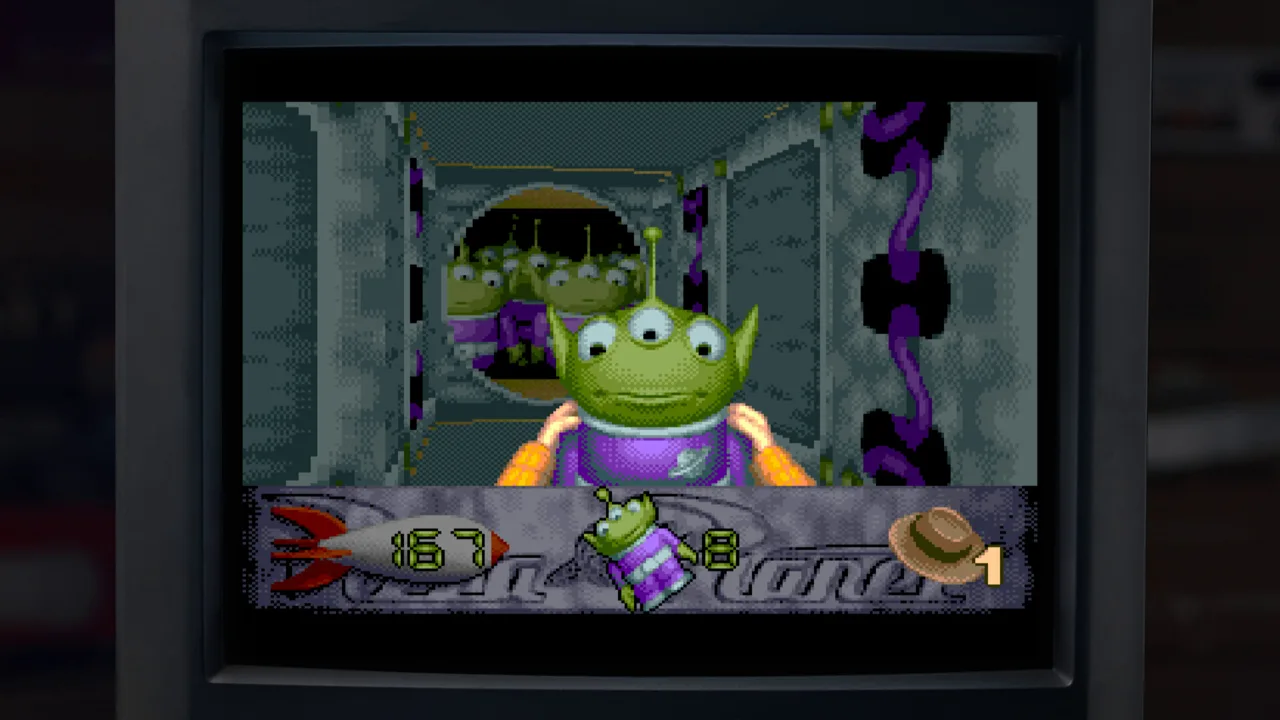 Image: Steam / Digital Eclipse
The EULA issue occurs after the title screen: keyboard, mouse, and controller input can leave the player unable to advance. If that matches your experience, describe it as an input problem at the agreement screen rather than a gameplay freeze.
Follow this order to narrow the failure:
- Identify whether the application launches. Record whether you reach the title screen.
- Check whether you reach and pass the EULA. Note which devices you tried and what happened with each.
- Identify whether the collection menu remains usable. This separates a collection-level problem from one tied to a selected game.
- Record the final action before a crash. Selecting a game and selecting a save file deserve separate descriptions.
For the Windows release, compare your computer with these minimum requirements:
| Component | Minimum requirement |
|---|---|
| Operating system | Windows 10, 64-bit |
| Processor | Intel Core i3-4100 or AMD A8-6600K |
| Memory | 8 GB RAM |
| Graphics | Nvidia GeForce GTX 460 or AMD Radeon R7 250X |
| Available storage | 8 GB |
Include your hardware and operating system when describing a PC crash. Meeting the minimum requirements provides useful context; the failure point still needs its own explanation.
For save-selection crashes, identify the selected file without deleting your progress. Record whether you encountered the problem in one title or across several, and name each affected version.
When writing Toy Story: Retro Roundup bug reports about these failures, keep the opening sentence concrete: “The collection closes when I select a save in the PS1 version of Toy Story 2” immediately identifies both the action and the game.
Step 2: Separate Input Lag, Analog Movement, and Camera Settings
Controls can feel wrong for different reasons. A delayed jump, restricted movement directions, and an inverted camera each affect play, but changing a camera option addresses only the camera.
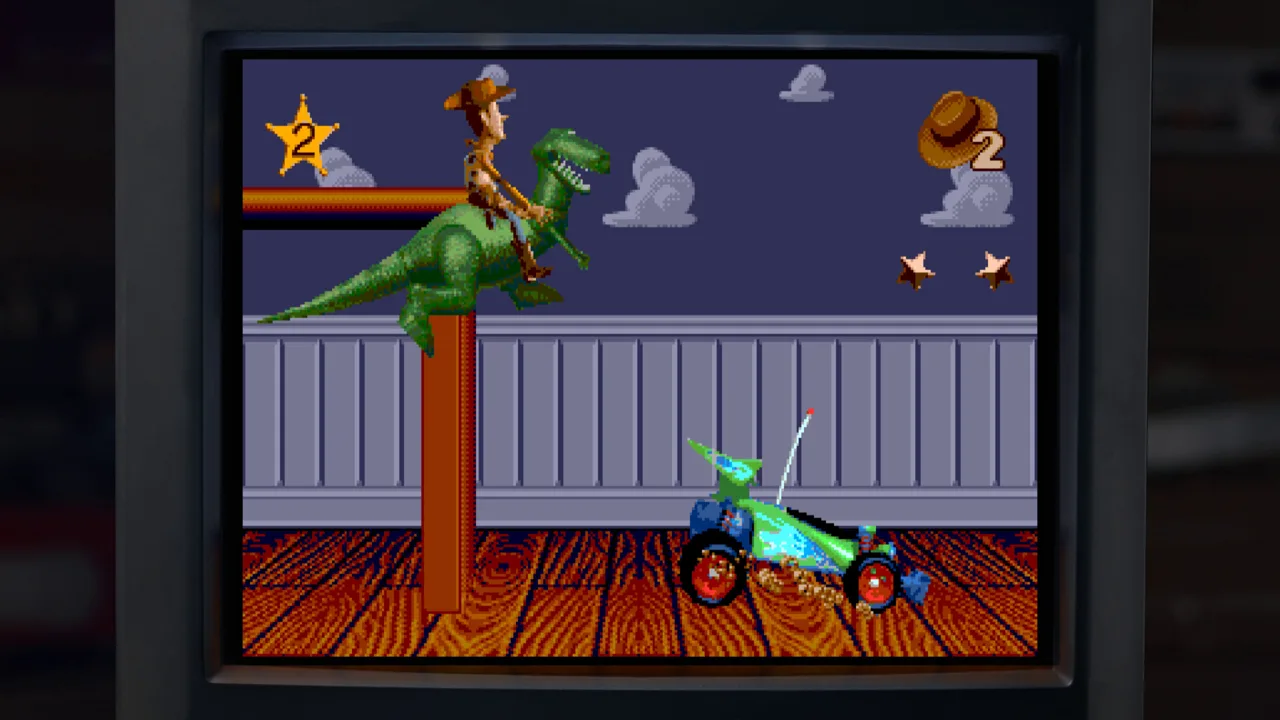 Image: Steam / Digital Eclipse
Input-lag complaints include Toy Story 2. Experiences differ, with some players finding the PS1 games familiar in responsiveness. Describe the action that feels delayed instead of assigning every missed jump to the same cause.
Analog movement presents a more specific issue. In A Bug’s Life on PS1, the left stick can behave like the directional pad, restricting movement to eight directions and preventing a slow walk through a slight stick tilt.
| Control problem | What it feels like | Useful check or action |
|---|---|---|
| Input delay | Movement or jumps feel late after a button press | Identify the exact action and game version |
| Directional-pad-style stick movement | Movement follows fixed directions | Check direction changes separately from camera movement |
| Missing gradual movement speed | A slight stick tilt does not produce a slow walk | Describe stick tilt and resulting movement |
| Inverted Toy Story 2 camera | Camera movement runs opposite to your preference | Look in Rex’s Cheat Codes for the camera-switch option |
| Awkward original camera | Positioning makes jumps difficult to judge | Use Rewind to retry missed jumps |
Work through the controls in this order:
- Check movement direction. Pay attention to whether the character follows intermediate stick angles.
- Check movement speed. In A Bug’s Life, distinguish restricted directions from the inability to walk slowly.
- Check camera behavior separately. In Toy Story 2, look for the camera-switch option in Rex’s Cheat Codes.
- Describe delayed actions precisely. Name the jump, turn, or menu action involved.
Rewind lets you scrub backward after a mistake. Use it to retry a difficult landing while learning how the game responds. It does not change the underlying steering or movement system.
The original 3D games also have demanding cameras and awkward positioning. Likewise, the original Toy Story features strict timers and challenging stages. Consult the enhanced How to Play instructions before assuming an unfamiliar action is malfunctioning.
Keep Toy Story: Retro Roundup bug reports focused on one control symptom at a time. “The stick only produces eight-direction movement” communicates much more than “the controls are bad.”
Step 3: Identify Audio Glitches and Language Limitations
Audio problems include distorted sound in Toy Story Racer and an unexpected “Game Over” jingle during the opening level of the PS1 version of A Bug’s Life. These symptoms deserve separate descriptions.
For Toy Story Racer, distortion affects more than music: sound effects are involved too. For A Bug’s Life, the distinctive problem is the wrong jingle playing during a level.
| Issue | Affected content | Detail to record |
|---|---|---|
| Audio distortion | Toy Story Racer | Whether music, sound effects, or both distort |
| Unexpected “Game Over” jingle | A Bug’s Life, PS1 opening level | What was happening when the jingle began |
| Missing German in-game text | Included PS1 games such as A Bug’s Life and Toy Story Racer | Game version and language shown |
| German collection menus with English gameplay | Collection interface versus individual games | Which screen changes language |
For an audio problem:
- Name the game and version. Include the original platform rather than the collection name alone.
- Describe the sound. Distortion and an incorrectly triggered tune are different symptoms.
- Identify the location. For the A Bug’s Life jingle, specify the opening level.
- Describe the gameplay state. Explain what your character was doing when the sound occurred.
Language behavior also needs careful wording. German collection menus do not mean every included game has German in-game text. The PS1 versions of A Bug’s Life and Toy Story Racer have drawn complaints about missing German localization, while the collection interface can display German.
If German text matters to your playthrough, check the individual game before settling into a long session. Distinguish menu language, gameplay text, and spoken dialogue in your description.
For these Toy Story: Retro Roundup bug reports, a short recording can communicate the symptom clearly. Capture the affected sound or the transition from a German collection menu to English gameplay, and keep personal information out of view.
Step 4: Try the Racer Achievement Workaround and Finish Your Report
The Game Boy Color version of Toy Story Racer has a specific achievement problem: completing its races can leave the related achievement locked. Replaying through Quick Race also failed to trigger it in the affected case.
A password-menu route successfully triggered that achievement:
- Open the password menu in Toy Story Racer for Game Boy Color.
- Enter the save password for the final race.
- Play the final race through that route.
- Check whether the achievement unlocks afterward.
Use the password associated with that final-race progress. Keep this workaround tied to the Game Boy Color version; the PS1 racing game is a separate version.
The distinction matters when describing the outcome. State whether you completed the tournament, tried Quick Race, or entered through the password menu. Those routes are the useful details behind the achievement problem.
Before submitting any Toy Story: Retro Roundup bug reports, assemble a compact checklist:
- Platform: Specify Steam on Windows when that is where the problem occurs.
- Included game: Give its full title and original console or handheld.
- Trigger: State the exact action immediately before the problem.
- Expected behavior: Explain what should happen.
- Actual behavior: Describe the crash, control restriction, audio glitch, or locked achievement.
- Relevant setup: Include PC specifications or input devices where applicable.
- Evidence: Add a screenshot or short recording that captures the symptom.
For example: “In Toy Story Racer for Game Boy Color, I completed the tournament races, but the achievement stayed locked. Completing races again through Quick Race did not unlock it.”
Keep unrelated complaints separate. Missing localization does not explain a crash, and an inverted camera does not demonstrate input lag. Clear descriptions preserve the details that matter for each problem.
Use the Toy Story: Retro Roundup Steam page to access the PC release and its Steam support options.
FAQ
What should I include in Toy Story: Retro Roundup bug reports?
Include your platform, the exact game and original-system version, the action that triggers the problem, and what happens afterward. Add PC specifications for crashes and controller details for input problems. Screenshots or short recordings help illustrate audio, movement, and language issues.
Can I change the inverted camera in Toy Story 2?
Look in Rex’s Cheat Codes for the camera-switch option. Check that setting separately from movement responsiveness: switching camera direction addresses your camera preference.
How do I handle the Toy Story Racer Game Boy Color achievement issue?
Use the password menu to enter the save password for the final race, then play that race. This route successfully triggered the achievement after tournament completion and Quick Race attempts had left it locked.
Does Rewind fix input lag or restricted analog movement?
Rewind lets you return to an earlier gameplay moment and retry a mistake. Use it for missed jumps or damaging encounters. Input delay and directional-pad-style analog movement remain separate control issues to describe in your report.
Continue with
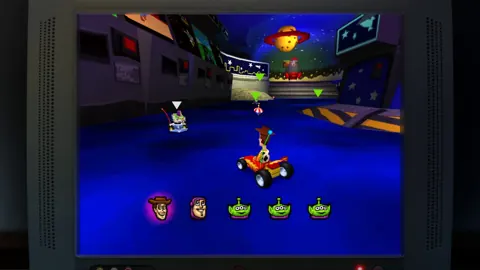 Toy Story: Retro Roundup Atari: Complete Play GuideExplore Toy Story: Retro Roundup Atari with a guide to all 11 versions, Rewind, Rex’s Cheat Codes, museum extras, and the Toy Story 3 double pack. Jump in.
Popular pages
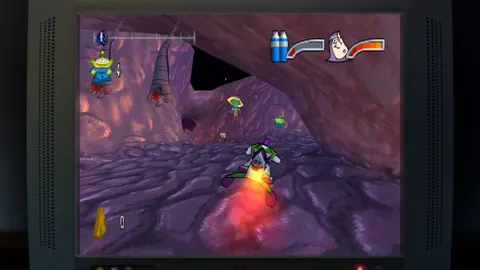
Toy Story: Retro Roundup Beginner Guide: Start Strong
Use this Toy Story: Retro Roundup beginner guide to choose your starting game, learn Rewind, manage Rex's cheats, and tackle classic Pixar adventures.
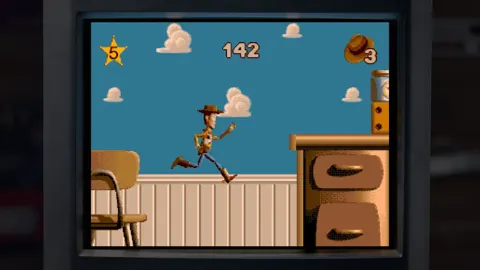
Toy Story: Retro Roundup Release Date & Buying Guide
Toy Story: Retro Roundup release date is October 15, 2026. Explore platforms, included games, costs, and the Toy Story 3 bundle before choosing an edition.
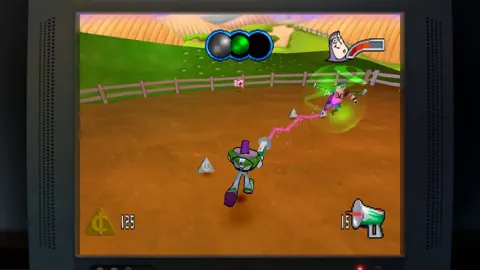
Toy Story: Retro Roundup A Bug's Life Player Guide
Toy Story: Retro Roundup A Bug's Life guide: compare PS1 and Game Boy Color versions, learn key mechanics, and explore cheats, extras, and launch details.
Toy Story: Retro Roundup PC: Steam Setup & Game Guide
Play Toy Story: Retro Roundup PC on Steam. Check Windows requirements, explore all 11 game versions, and learn how rewind, cheats, and local racing work.
Join the community
Official channels for news, updates and player help: